My Honest Take on the VSDINSIDE Stream Controller
As someone who dabbles in streaming and spends a fair amount of time editing videos, I've always eyed those fancy stream decks. However, the price point for some of the big-name brands always made me hesitate. So, when I stumbled upon the VSDINSIDE Stream Controller, promising similar functionality without burning a hole in my wallet, I was genuinely intrigued. I decided to grab it on Amazon and see if it could really deliver.
First Impressions and Setup
Out of the box, the VSDINSIDE controller feels decent. It's mostly plastic, which is expected at this price point, but it doesn't feel overly flimsy. The USB-C cable is a nice touch for modern connectivity. Size-wise, it's compact enough to fit on my desk without taking up too much real estate, which is a big plus for me.
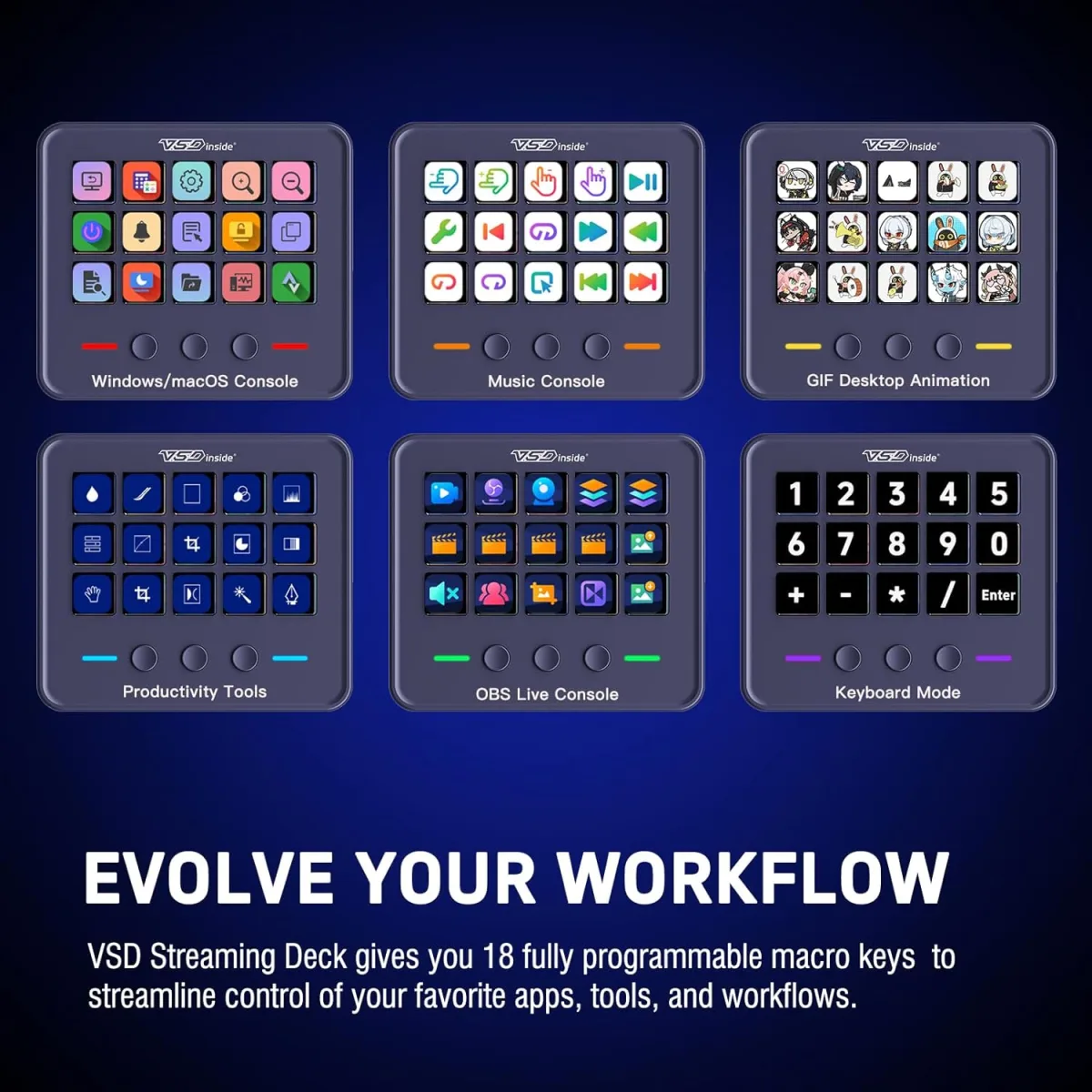
The real test, as with any peripheral like this, is the software. I downloaded the companion software from their website, and the installation was straightforward enough. I'll be honest, my expectations weren't sky-high for the software, but I was pleasantly surprised. It's not as polished as some competitors, but it’s functional and relatively intuitive. I was able to assign hotkeys, launch applications, and set up some basic OBS scene switching without too much head-scratching. The ability to customize the icons for each of the 15 LCD keys is a huge win. I spent a good hour just finding and importing custom icons to make my setup feel truly mine.
Day-to-Day Use and Performance
After a few weeks of using this regularly, it's become a solid part of my workflow. The buttons themselves have a satisfying, tactile click. They're not mechanical keyboard switches, but they're responsive and don't feel mushy. The LCD screens behind each button are bright enough for my setup, though they're not retina-display sharp. For displaying simple icons or text, they do the job perfectly.
I primarily use it for:
- OBS Scene Switching: A single button press to jump between my "Starting Soon," "Gameplay," and "Be Right Back" scenes. This alone is worth the price of admission for me.
- Mute/Unmute Audio: Quick toggles for my mic and desktop audio. Essential for streaming!
- Launching Applications: Instant access to my editing suite, browser, or specific games.
- System Macros: Simple copy/paste, opening Task Manager, or even a quick "Good morning" message in Discord.
- Soundboard: I've loaded a few fun sound clips for my streams, and they trigger reliably. The software handles audio playback without noticeable delay.
The software allows for multiple profiles, which is fantastic. I have one for streaming, one for video editing, and another for general productivity. Switching between them is a breeze, and it really extends the utility of those 15 keys.
What I Loved (Pros)
- Price Point: This is arguably its biggest selling point. You get a lot of functionality for significantly less than the more established brands. If you're looking to dip your toes into macro pads, this is a great entry point. You can check today's price and see just how competitive it is.
- Customization: The ability to use custom icons for each key is fantastic. It really helps personalize the device and makes it easier to remember what each button does at a glance.
- Reliable Performance: Once set up, the macros and commands trigger consistently without fail. I haven't experienced any missed presses or software crashes during critical moments.
- Multiple Profiles: This makes it incredibly versatile for different tasks and applications.
What Annoyed Me (Cons)
- Software Polish: While functional, the software isn't as slick or feature-rich as a premium brand. There's a bit of a learning curve, and some UI elements feel a little clunky. I noticed it takes a moment to load sometimes, and I wish there were more advanced options for scripting complex macros.
- Build Material: It’s plastic. It feels solid enough, but if you're expecting a premium, weighty device, you might be a little disappointed. It doesn't have the same high-end feel as some alternatives.
- Documentation/Support: The included instructions were pretty basic, and finding community support or detailed tutorials online is harder than for more popular devices. I had to figure out a few things through trial and error.
- Screen Resolution: The LCD screens are perfectly fine for icons, but don't expect crisp, high-res images. Fine for purpose, but not stunning.
Who Should Buy This
If you're a budding streamer, a content creator on a budget, or just someone who wants to streamline their PC workflow without breaking the bank, this VSDINSIDE Stream Controller is absolutely worth considering. It's perfect for those who need basic to intermediate macro functionality, reliable scene switching, and quick access to common tasks. If you're willing to spend a little time getting familiar with its software and don't need the absolute bleeding edge of features or the most premium build quality, you'll be happy with this.
Who Should Skip It
If you're a professional streamer who relies on flawless, deeply integrated software and needs every advanced feature under the sun, you might find yourself wanting more. If you demand a premium, metal-clad build quality and don't mind paying top dollar for it, then this might not hit the mark. Also, if you're easily frustrated by less-than-perfect software interfaces or expect extensive community support, you might be better off with a more established (and expensive) option.
Final Thoughts
Overall, I'm genuinely impressed with the VSDINSIDE Stream Controller for what it offers at its price point. It’s not perfect, but it delivers on its core promises. It's made my streaming and editing life noticeably smoother, and I don't feel like I've compromised too much by going with a more affordable option. If you're on the fence and looking for a capable macro pad that won't empty your wallet, I'd say give this a shot. It's a solid performer for everyday use. For a solid alternative that won't break the bank, pick one up here.